Pronto in Canvas

What is Pronto?
Pronto is an easy-to-use communication platform that scales for large organizations. It provides a means of synchronous chat/video/audio/images, much like your own group phone messages, with only course enrolled students in your Pronto group. Access is from the Pronto app or Canvas courseshell.
How does it work inside of Canvas?
Pronto's Canvas integration instantly connects each user with the students and instructors in their current courses and groups. It does so by automatically creating a group chat for each section the user is in, as well as their Canvas groups.
Where is it?
 To access Pronto, click on "Pronto" on Global Navigation Menu
Training Videos and Resources:
Pronto App on Android and iPhone
Download Pronto on Android and iPhone
- For Android, go to Google Play Store
- For iPhone, go to the App Store
- Once you open Pronto on your mobile phone or tablet, tap on the "Email" button and
enter the email address you use to log in to Canvas.
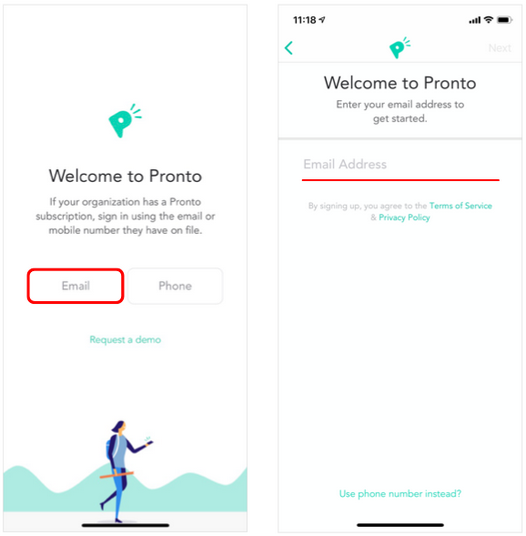
- Confirm your identity on the next screen in Pronto by entering the "Verification Code"
sent to your email.
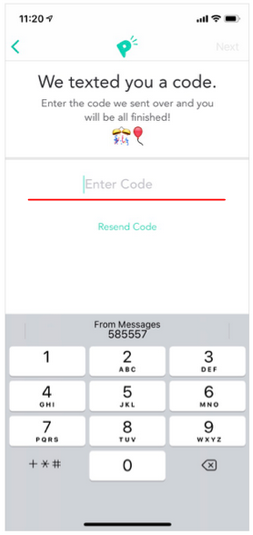
- And...you're done!
Pronto Sync in Canvas
Your courses will appear in Pronto after they have been published in Canvas, and added to the automated sync. This initial sync will take place every night at 5pm MT, any course published before this time will be added to the sync and will create the corresponding Pronto group within the next 6 hours.
If you did not publish your courses before 5pm MT, they will not be added to the scheduled sync until the following day, and will then create the corresponding groups in Pronto within the next 6 hours after that.
If you are the "Teacher" of the course (not a Student) then you may want to verify
the course is Enabled (not Disabled) and you can try doing a Sync now. Log in to Course Management to sync.
Useful Links
- Pronto Overview for Students
- Pronto Training (Recorded Zoom Session)
- Log in to Pronto with Android
- Log in to Pronto with iPhone
- Pronto Overview for Faculty
- How Does it Work Inside of Canvas?
- Pronto Course Management (Faculty)
- Instructions on How to Disable a Course in Pronto (Faculty)
Pronto Technical Support
- Pronto Help Center (Live chat available. Click on the chat icon
 on the bottom right of the page)